
The global shell is visible across the Vero OMS workspace. It contains navigation shortcuts, account context, command entry, settings, locale controls, connection status, and layout controls.

Top navigation and command bar

The top bar contains the logo, F1 to F8 workspace shortcuts, Help, Settings, Fullscreen, display controls, language, clock/time zone, command prompt, New Order, and active context. Global top navigation
ControlPurpose
F1 to F8Switch between Dashboard, Orders, Portfolios, Algo, Put Through, Price Board, Operation, and System.
CMD>Search or command entry for account and group context.
NEW ORDEROpens the order drawer without leaving the current workspace.
HelpOpens external help content.
SettingsOpens terminal configuration.
Fullscreen/displayAdjust display presentation.
LanguageSwitch between EN and VI.
Time zoneChange the time zone used by clock and timestamps.

Settings

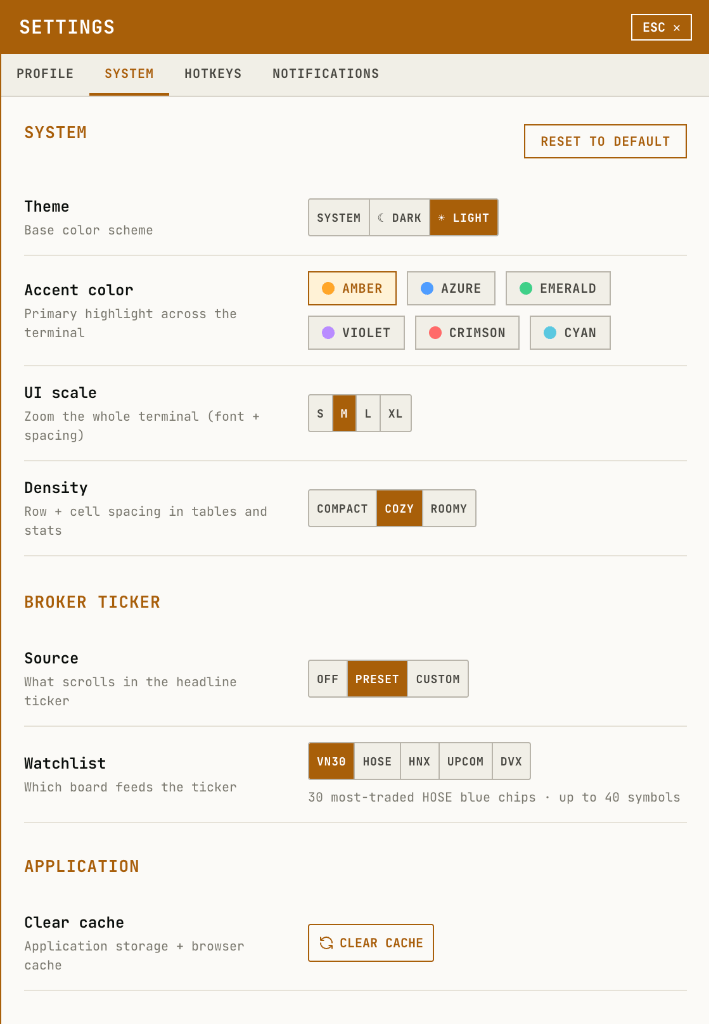
The Settings panel has Profile, System, Hotkeys, and Notifications tabs. The System tab contains theme, accent color, UI scale, density, broker ticker source, and clear cache controls. Settings system panel

Language menu

The language menu controls the interface language. Language menu

Time zone menu

The time zone menu provides search and supported zones for terminal clock and timestamp display. Time zone menu

Algo menu

F4 Algo opens the algo navigation menu. The menu contains Execution Algo, MM Algo, Basket Trade, Neutral Algo, Strategy Algo, and Options Strategy. Algo menu

Status bar

The status bar displays streaming connection, RTT/P99, market ticker, session timer, build version, and layout controls. Global status bar

Layout controls

The bottom-right layout toolbar includes layout selection, share layout, import layout, and arrange/grid controls. Layout toolbar The layout menu displays the active layout, existing layouts, new layout creation, and layout duplication. Layout menu