> ## Documentation Index
> Fetch the complete documentation index at: https://docs.vos.verolabs.co/llms.txt
> Use this file to discover all available pages before exploring further.
# Sign in
> Access Vero OMS with an authorized account
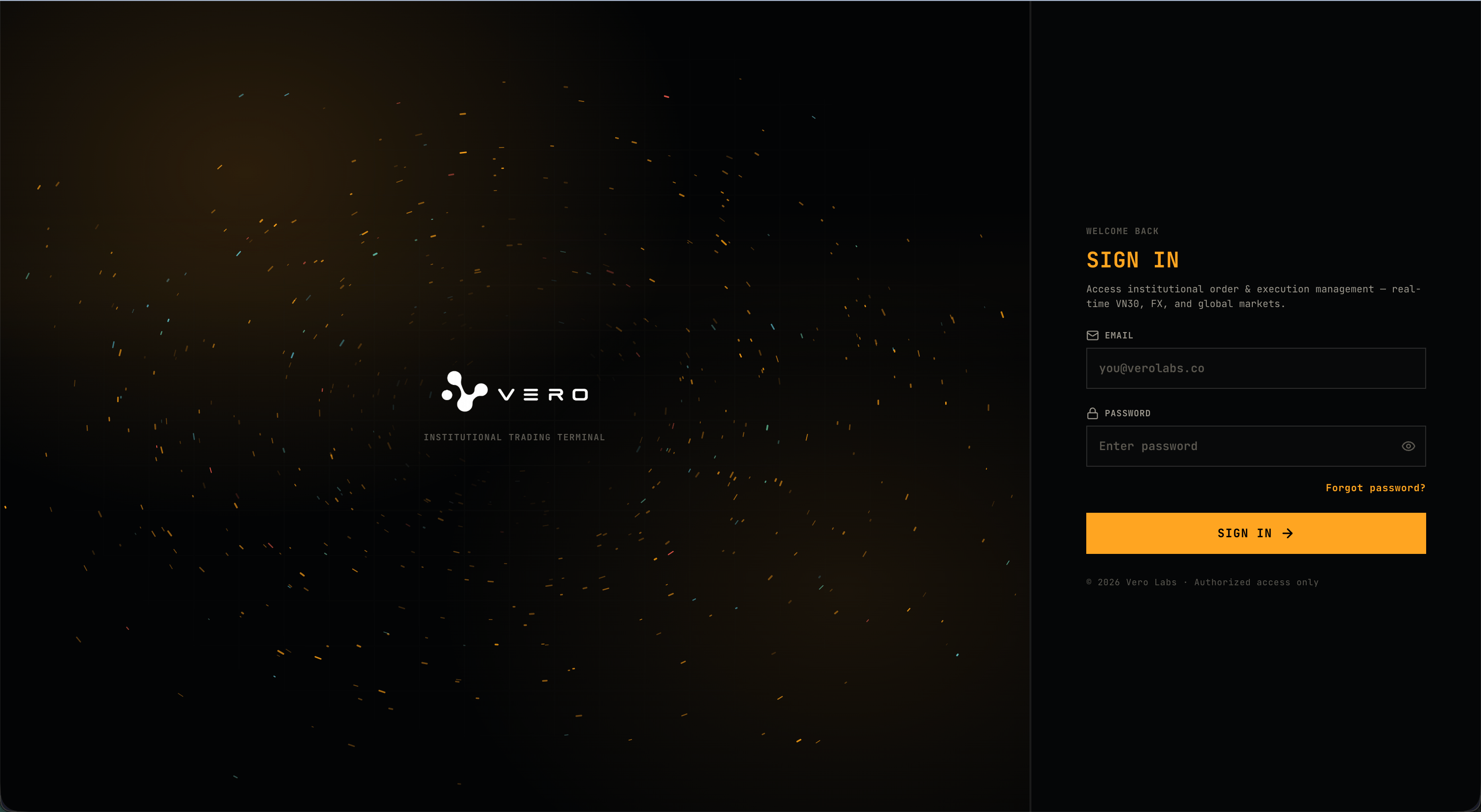
Use the sign-in page to start an authorized Vero OMS session.
 ## Sign-in procedure
Enter the email associated with your Vero OMS account.
Enter the current password. Use the visibility control only when the screen is private.
The button shows a working state while the request is processed. A successful sign-in opens the requested workspace or Dashboard.
## Controls and states
| Control or state | Behavior |
| -------------------- | ----------------------------------------------------------------------------------- |
| Email | Requires a valid email value. |
| Password | Requires the current account password. |
| Show / Hide password | Changes only the field display. |
| Sign In | Starts authentication when the required fields are present. |
| Error message | Indicates that access could not be completed. Verify the credentials and try again. |
| Forgot password? | Opens the [Account recovery](/en/user-guides/account-recovery) page. |
## Sign-in procedure
Enter the email associated with your Vero OMS account.
Enter the current password. Use the visibility control only when the screen is private.
The button shows a working state while the request is processed. A successful sign-in opens the requested workspace or Dashboard.
## Controls and states
| Control or state | Behavior |
| -------------------- | ----------------------------------------------------------------------------------- |
| Email | Requires a valid email value. |
| Password | Requires the current account password. |
| Show / Hide password | Changes only the field display. |
| Sign In | Starts authentication when the required fields are present. |
| Error message | Indicates that access could not be completed. Verify the credentials and try again. |
| Forgot password? | Opens the [Account recovery](/en/user-guides/account-recovery) page. |